

Coming soon · not available to purchase
For Botble and WooCommerce
Veeqo orders and shipping labels
Move from paid order to a label you can reopen.
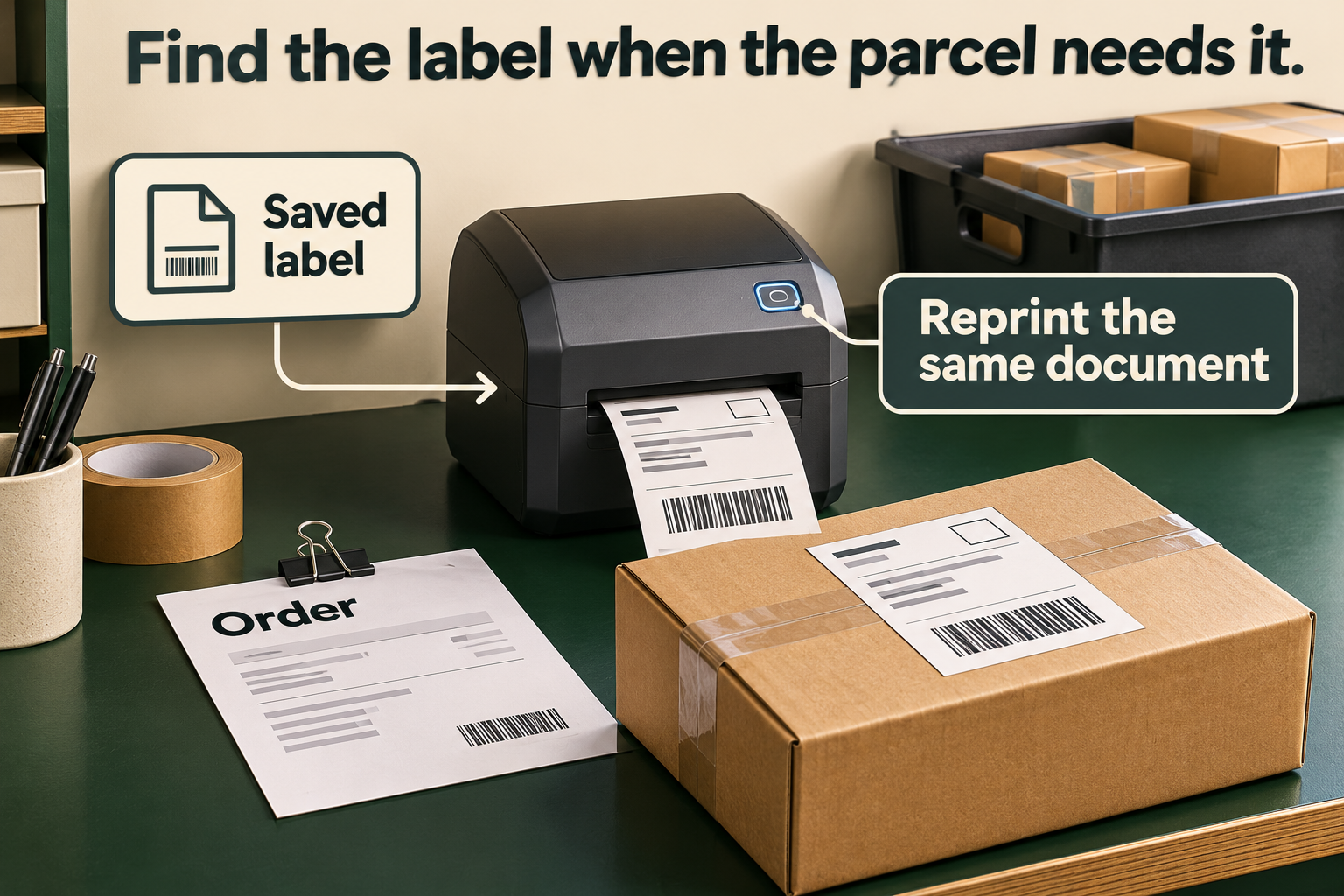
Send supported shop orders to Veeqo, review the rates it returns and book one shipment when you are ready. Keep the shipping status, available tracking and stored label beside the order.
One order, one shipment
Send the order. Choose the rate. Keep the label.
Follow one supported order from the shop into Veeqo and back to its saved label. Sending the order prepares the dispatch work; booking a live rate is a separate chargeable decision on your connected Veeqo account.
Send the matched order
Use the selected channel and existing Veeqo sellables matched by SKU. Check the order status and currency before requesting rates.
Review the parcel and service
Read the returned service and charge with the actual parcel information. Rates and available carriers depend on your Veeqo account and allocation.
Book the chosen rate
Confirm the intended live rate on the Orders screen. Automatic sending alone does not purchase postage.
Reopen the saved label
Return to the same order when packing resumes or another staff member takes over. Open its stored label and available tracking through authenticated shop administration.
Prepare dispatch
Put the paid order into the right Veeqo channel.
Start with the order your shop already holds. All Shipping sends supported paid orders to the Veeqo channel you configure, with product lines matched by SKU to existing Veeqo sellables. The shop currency must match the Veeqo company currency. This gives the dispatch process a defined starting point: the selected store, the customer’s delivery information and products that Veeqo can recognise. If an order with the same number already exists on that channel, the connector can link it rather than creating another. Check a small order and its product matches before enabling automatic sending. Missing Veeqo products are not created for you, and sending the order is separate from purchasing a shipping label.
- Select the Veeqo channel used for your shop orders.
- Match line SKUs to existing Veeqo sellables.
- Review the order’s status before continuing to rates.
Review the rate
Review the service and charge before booking.
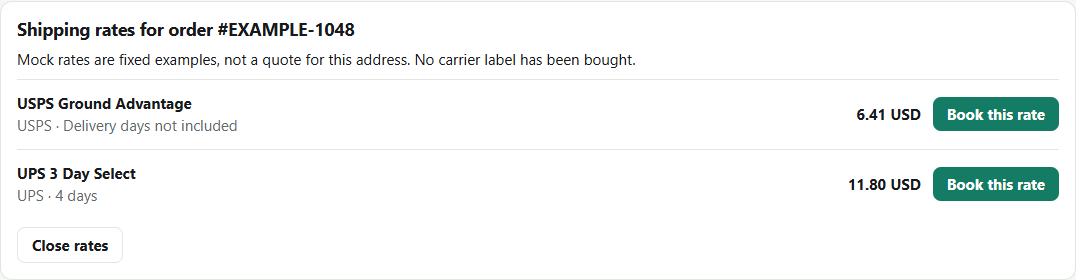
Request the shipping rates Veeqo makes available for the order allocation. Compare the returned service and charge with the parcel information, then confirm the rate you intend to book. With a live API key saved, that confirmation buys a label on your connected Veeqo account. The booking stays a deliberate Orders-screen action. Carrier availability, prices and service information come from Veeqo and your account setup; the connector does not promise a particular courier, lowest price or delivery date.
Keep the label
Return to the order when you need the label again.
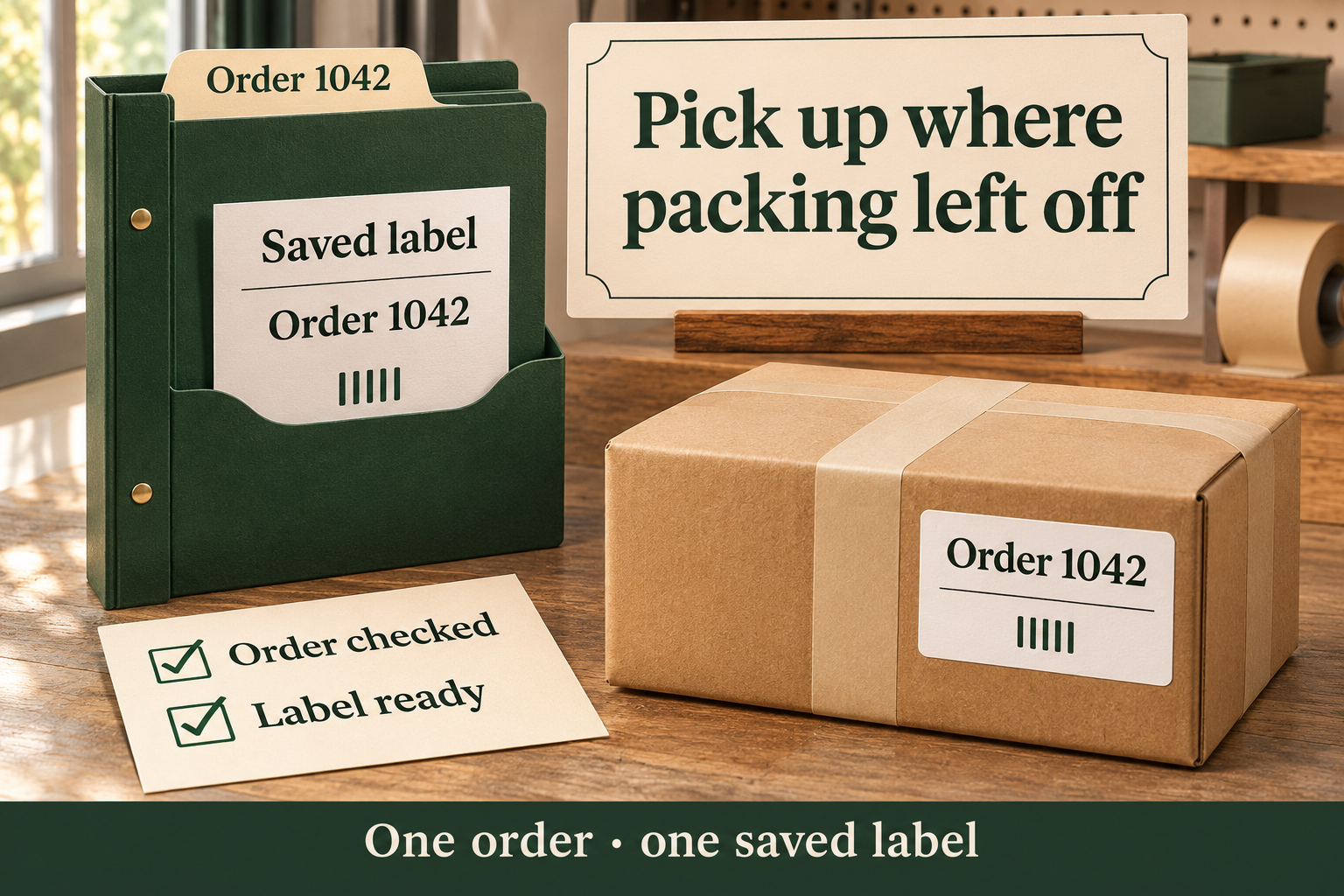
The Orders screen brings together the shop order, Veeqo status, tracking information when present and the actions to get or open a label. After a supported booking, the stored label remains associated with that order. That is useful when packing is interrupted or another staff member takes over. Open the saved label through the authenticated shop administration and check the order context instead of searching an unrelated downloads folder. The connector covers one shipment per supported order. It does not add a multi-parcel packing interface, return labels or a general stock synchronisation service.
WooCommerce feature
Fit the shop routine
Prepare eligible WooCommerce orders for Veeqo.
The WooCommerce edition can send an order when its status becomes processing or completed. With a live key saved, automatic sending waits for a selected channel. The order screen retains manual actions and the label journey; a successful send and a stored label add notes to the WooCommerce order.
- Review processing and completed orders.
- Keep send and label results with the source order.
Botble feature
Botble sending
Keep a manual route when the event setup differs.
The Botble edition can send orders from the supported payment-confirmed or order-completed events when automatic sending is enabled. Event names can differ between Botble versions, so check that behaviour in the installed shop. Get label or Send to Veeqo provides a manual route from the screen. Ask your host to confirm the installed edition and event integration before relying on automatic sending.
Connect Veeqo
Check the account, products and parcel before booking.
Use the Veeqo connection test, then verify one supported order against the actual channel and carrier setup. The live rate and label depend on that external account.
- Requires a Veeqo account, live API key, selected channel and a carrier setup that can provide a bookable rate.
- Order-line SKUs must match existing Veeqo sellables. The connector does not create missing Veeqo products.
- Match the shop currency to the Veeqo company currency, and review the parcel information before booking.
- With no API key, the documented flow uses sample rates and mock labels. Those are not carrier purchases.
Botble
- Requires a compatible Botble installation with Ecommerce active.
WooCommerce
- Requires WooCommerce and PHP 8.1 or later. Restrict settings and label actions to the appropriate shop staff.
Practical questions
Know what the connector will and will not dispatch.
Can All Shipping connect directly to any courier?
It connects your shop to Veeqo. Rates and labels depend on the services available to that account and order allocation. It is not a general direct-to-courier integration.
Does automatically sending an order buy postage?
No. Sending and booking are separate. Review and confirm a bookable rate on the Orders screen to purchase a label on the connected Veeqo account.
Are the rates shown without an API key real quotes?
No. Empty-key mode uses fixed sample rates and mock labels. The labels are not purchased from a carrier. A saved live key switches requests to the connected Veeqo account.
What if a product does not exist in Veeqo?
Order-line SKUs must match existing Veeqo sellables. The connector does not create missing products, so prepare and check those matches before sending live orders.
Can I split an order into multiple parcels?
The documented connector handles one shipment per supported order. A multi-parcel interface, inbound labels and returns are outside this scope.
Can I reopen a label after booking?
A stored label can be opened from the order through the authenticated shop administration. Available tracking information is shown with the order when it has been returned by the connected service.
What parcel information is used?
Check the actual allocation and package note before booking. Where an allocation has no parcel size, the documented connector can use a small default package based on Veeqo company units; it does not guess a weight when those units are unknown. Do not assume that default describes your parcel.
Does it synchronise inventory or notify customers automatically?
Stock synchronisation is outside the documented scope. The booking request sets customer notification to false, so do not treat this connector as your complete customer dispatch messaging system.